
Most people only think about their computer when something goes wrong, and the worst time for that to happen is five minutes into a live keynote you paid to attend. A graphics driver that has not been updated in months, a browser running a dozen forgotten extensions, or a Bluetooth headset that keeps dropping out can turn an interactive summit session into a frustrating one. A short pre-event check fixes almost all of it.
This checklist walks through exactly what to check before you join a virtual or hybrid gamification summit session, so the technology stays out of the way and you can focus on the event itself.
Why Drivers Matter More for Virtual Events Than People Realize
Drivers are the small pieces of software that let your operating system talk to your hardware: your graphics card, network adapter, sound card, webcam, and Bluetooth devices. Every one of those components is doing active work during a live virtual session, streaming video, transmitting audio, rendering a shared screen, and running a live chat or poll at the same time.
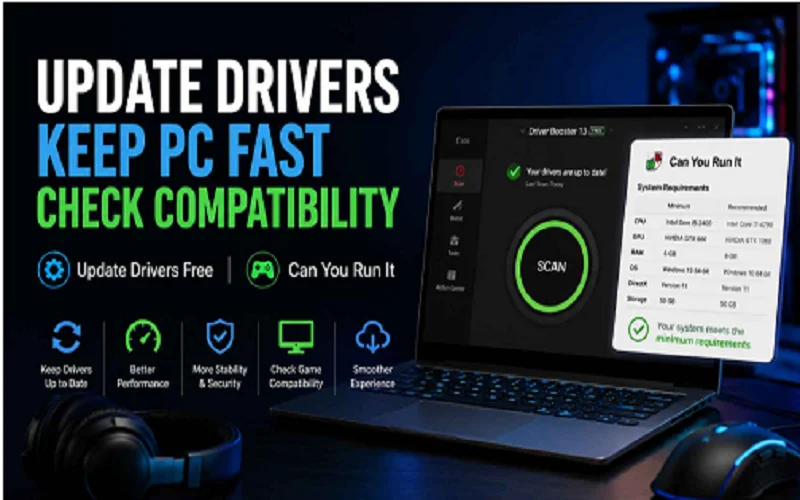
Manufacturers release updated drivers to fix bugs, improve stability, and support newer software, but Windows Update does not always carry the latest version. Many people use a tool to update drivers free instead of hunting down each manufacturer’s website individually. Driver Booster scans your system, flags outdated or missing drivers, and installs current versions from its database in a few clicks, which is far faster than checking your GPU, audio, and network drivers one at a time the night before an event.
The Browser and System Check Most People Skip
Drivers handle the hardware side. The other half of tech-readiness is your browser and system setup, since most virtual and hybrid summit platforms run entirely through a browser tab rather than a downloaded app.
- Update your browser to the current version. Event platforms are frequently built on recent web standards, and an outdated browser build is a common cause of a session simply failing to load correctly.
- Disable unused extensions before joining. Ad blockers, script blockers, and old extensions can silently break a live chat widget, a polling tool, or a video embed without giving you an obvious error message.
- Test your camera and microphone permissions in advance. Most platforms ask for browser permission the first time you join a session, and discovering a blocked permission during the event wastes time you do not have.
- Check your internet speed, not just your connection status. A connection that shows as “connected” can still be too slow for smooth video, especially if other devices on the same network are streaming at the same time.
Common Technical Issues During Virtual Summits, and How to Prevent Them
| Symptom During a Live Session | Likely Cause | Fix |
| No sound during a keynote stream | Outdated or missing audio driver | Update audio drivers before the event, not during it |
| Video freezes or drops frames | Outdated graphics driver or weak connection | Update GPU drivers and test your connection speed beforehand |
| Browser crashes during a live poll or chat | Too many extensions or an outdated browser build | Update your browser and disable unused extensions before joining |
| Bluetooth headset disconnects mid-session | Outdated Bluetooth driver | Update Bluetooth/network drivers a day ahead, not minutes before |
| Screen-share or camera fails to load | Missing permissions or outdated webcam driver | Test camera and screen-share access in a dry run before the event |
A Simple Pre-Event Checklist
You do not need advanced technical knowledge to get ready for a virtual or hybrid summit. A short routine the day before covers almost everything:
- Scan your system and update drivers free using a trusted driver updater, rather than waiting for Windows Update to catch up on its own schedule.
- Update your browser and close or disable extensions you do not actively use.
- Restart your computer after updating drivers and your browser, since some updates only take effect after a restart.
- Join any “test your setup” link the event organizer provides ahead of time, if one is offered.
- Test your camera, microphone, and screen-share permissions in a quick dry run, not for the first time once the session has already started.
- Have a backup connection in mind, such as a phone hotspot, in case your primary internet drops during a key session.
Why This Matters More for Interactive, Gamified Sessions
A passive webinar can survive a few seconds of lag. A gamified summit session, with live polls, leaderboards, and real-time audience interaction, cannot. If your browser lags during a live vote or your audio drops during a Q&A, you lose the exact moments the session was designed around. The same readiness that keeps a gaming setup running smoothly applies directly here: outdated drivers and an unoptimized browser are the most common, and most preventable, reasons an otherwise well-designed interactive session falls flat for an individual attendee.
Frequently Asked Questions
How far in advance should I run this checklist?
The day before the event is ideal. That gives you time to restart your computer after updates and troubleshoot anything unexpected without the pressure of a session starting in minutes.
Can outdated drivers really affect a browser-based event, not just games?
Yes. Graphics, audio, and network drivers all affect how smoothly a browser renders video, plays audio, and maintains a stable connection, regardless of whether the software running is a game or a virtual event platform.
What if I am joining from a work laptop where I cannot install software?
Focus on what you can control: update your browser if permitted, close unused tabs and extensions, and test your camera and microphone permissions ahead of time. If driver updates require admin access you do not have, flag this to your IT team a few days before the event rather than the morning of.
Final Thoughts
A virtual or hybrid gamification summit depends on the same technical foundation as any other browser-based experience: current drivers, an updated browser, and a stable connection. None of this requires deep technical expertise, just a short routine done a day ahead instead of a scramble five minutes before a keynote starts.
Whether you are attending for the sessions, the networking, or the interactive challenges, taking a few minutes to update drivers free and check your browser setup ahead of time is the difference between a smooth experience and spending half the event troubleshooting instead of participating.
Julian Thorne is a distinguished Technical Strategist and Fintech Analyst with over 6 years of experience in digital payment architectures. Specializing in the integration of high-performance gateways like Xendit, he focuses on optimizing the intersection of gamification and online ticketing systems. Julian’s expertise lies in deconstructing complex payment flows and enhancing sales effectiveness through data-driven insights. His recent work deeply explores the evolution of digital event platforms in 2026, providing actionable strategies for global summits and large-scale ticketing infrastructures.

Julian Thorne is a distinguished Technical Strategist and Fintech Analyst with over 6 years of experience in digital payment architectures. Specializing in the integration of high-performance gateways like Xendit, he focuses on optimizing the intersection of gamification and online ticketing systems. Julian’s expertise lies in deconstructing complex payment flows and enhancing sales effectiveness through data-driven insights. His recent work deeply explores the evolution of digital event platforms in 2026, providing actionable strategies for global summits and large-scale ticketing infrastructures.
Learn more about our team OR Get in touch